Start with what needs you
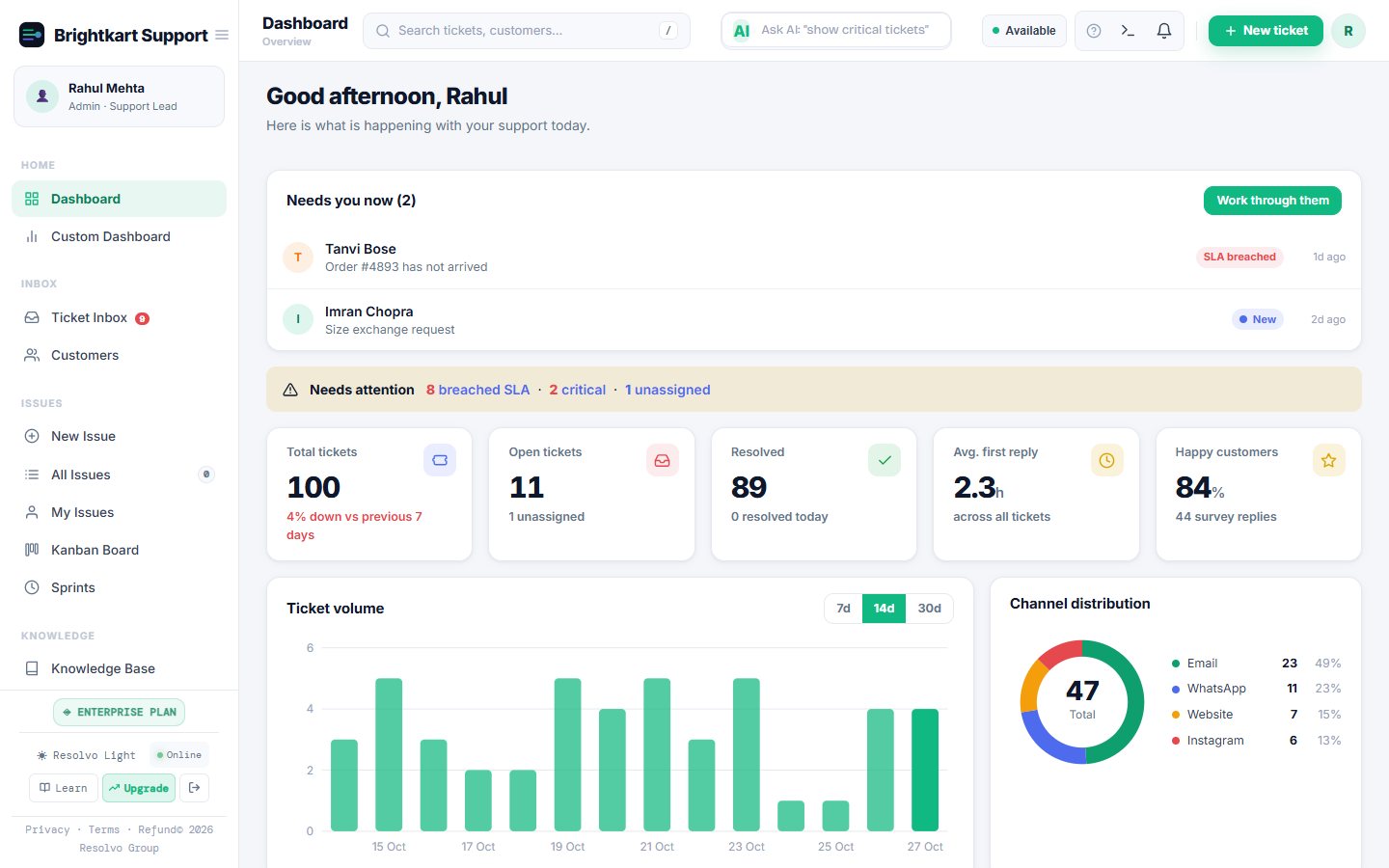
The dashboard now opens with a short list called Needs you now: the tickets waiting on you, with the ones closest to their target time first. Click one and it opens in the inbox. Press Work through them and you are in Focus mode.
Focus mode: one ticket at a time
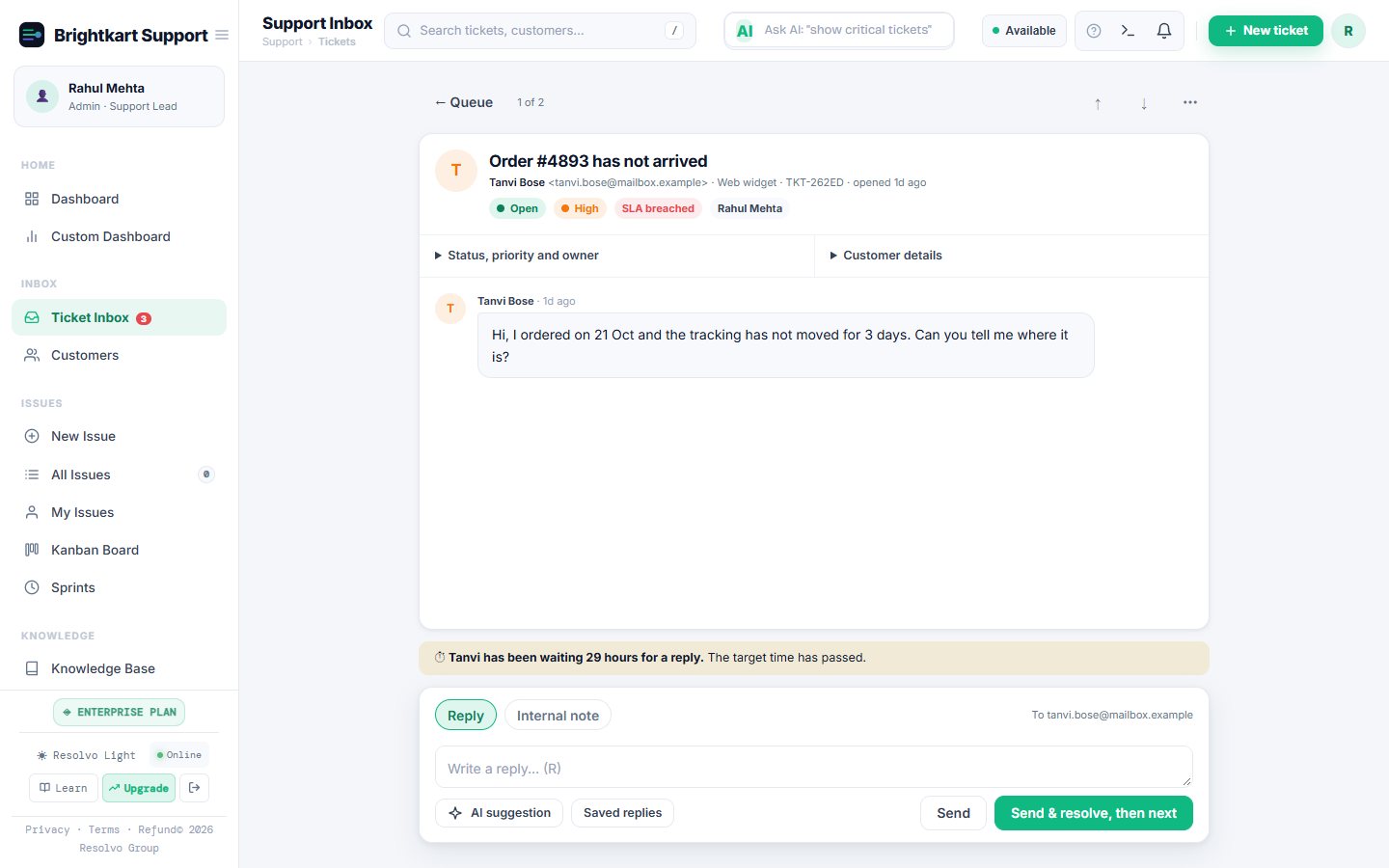
Focus mode is one calm queue, sorted by urgency, and one conversation at full width. The main button does three things in order: it sends your reply, marks the ticket resolved, and opens the next one. It only moves on after the reply was really sent. If sending fails, your text stays where it is and nothing is resolved.
- J and K move through the queue, Enter opens a ticket
- R jumps to the reply box, E resolves without a reply, Esc goes back
- On phones, Focus mode is where you start
💡 Quick tip Type / in the reply box to insert a saved reply. Old tickets also show how long the customer has been waiting, so nothing quietly ages.
Newsletters and alerts stay out of your queue
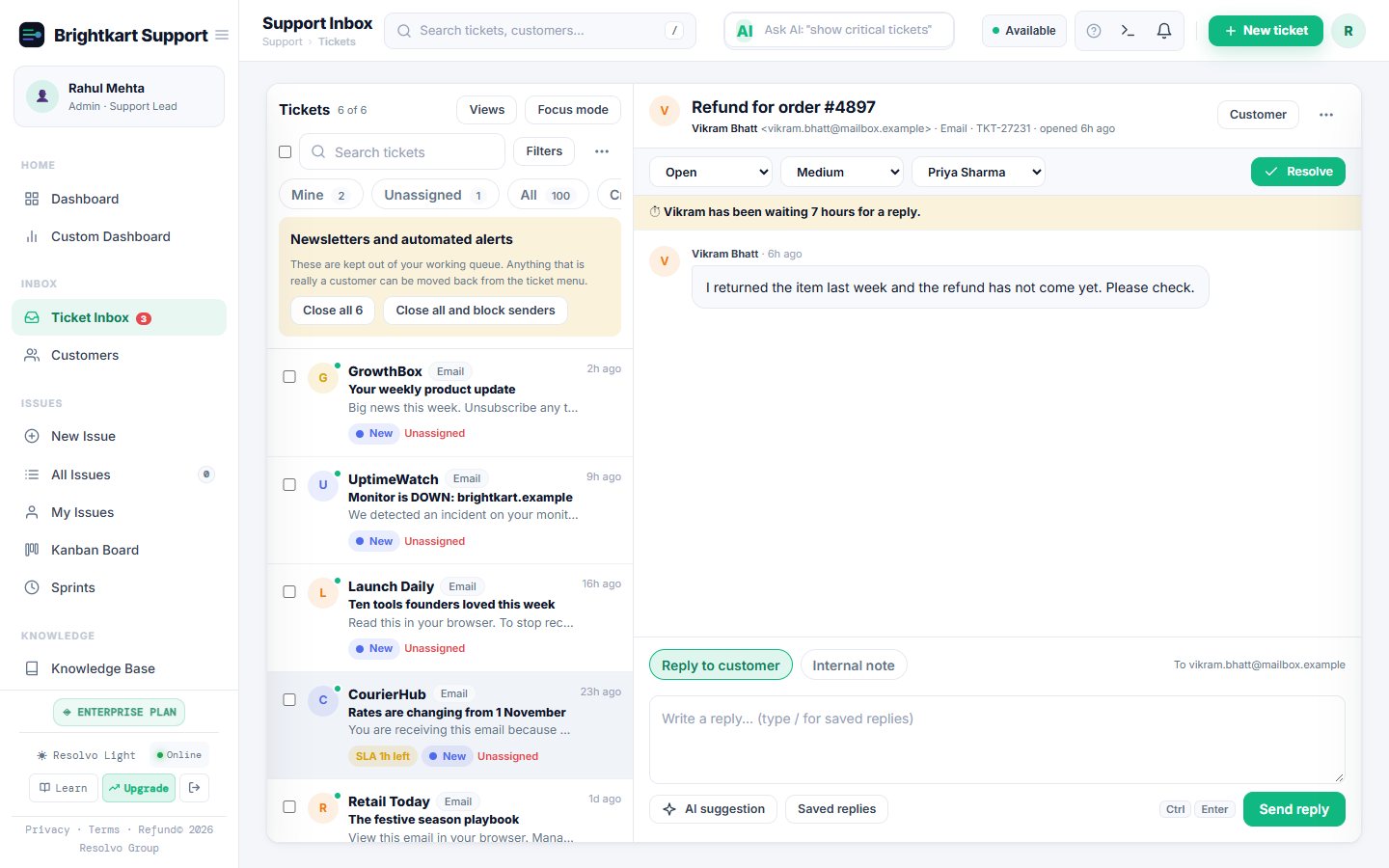
If your support address is also on a few mailing lists, you know the problem: product updates and uptime alerts become tickets, and your counts stop meaning anything. Resolvo now spots them and keeps them in a separate Promotions and alerts view. They do not count towards your numbers, your Focus queue or auto-assignment.
As an admin you can close them all in one click, or close them and block the senders. A real customer caught by mistake can be moved back to the inbox for good. Nothing is deleted and nobody is emailed.
Try it before you sign up
The interactive demo runs in your browser with made-up data. Click around, nothing is saved.
Open the demo →Insights that answer questions
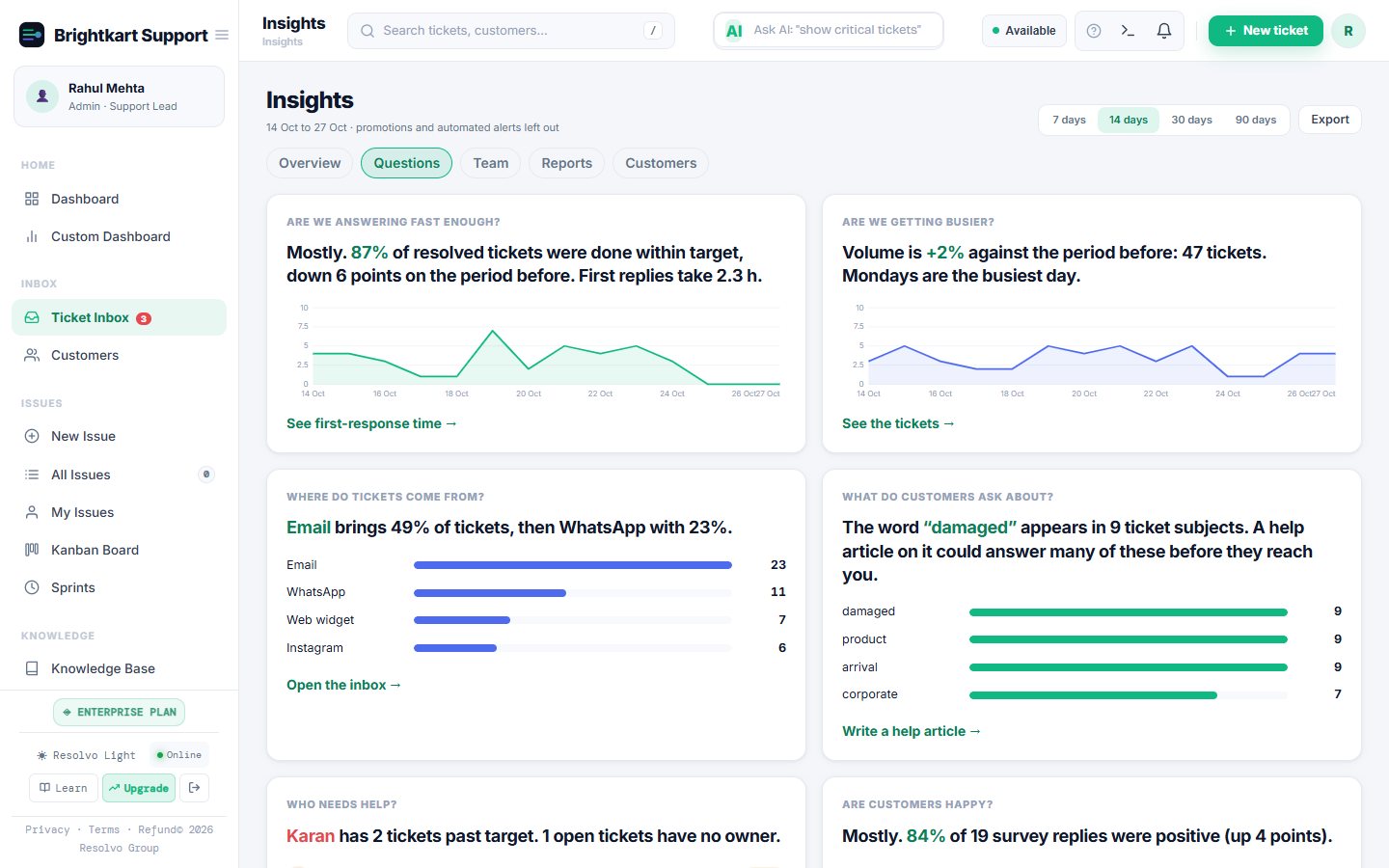
Reports, Analytics, Workload and Customer health now sit under one Insights page. The Overview shows tickets, resolved, first reply time, how many were resolved on time and how happy customers are, with a comparison to the period before. The Questions tab answers in plain sentences: are we answering fast enough, are we getting busier, where do tickets come from, who needs help. The Team tab shows who is overloaded, who has tickets past their target and when tickets tend to arrive.
Customers, joined up
The same person often writes by email on Monday and on WhatsApp on Thursday. Resolvo now shows customer health (VIP, at risk, happy, active), when you last heard from them, and offers to merge likely duplicates. A merged customer keeps every address, ticket and deal.
Settings that show what is not set up
Settings opens on a landing page. Every section shows whether it is on, off or needs attention, and the things that need you, such as an unconnected email or Slack alerts, are listed at the top. Inside a section there is a searchable list on the left and a breadcrumb, so you never get lost. Your existing settings and data are unchanged.
On your phone
Open Resolvo in your phone's browser and install it from the menu. Turn on alerts under Settings → My Notifications and you will get a notification when a ticket is assigned to you, or is close to or past its target time. In the queue, swipe right to take a ticket and left to snooze it until tomorrow. On iPhone, add Resolvo to your Home Screen first.
Also new
- Ctrl+K finds tickets and customers by name, and jumps to any page
- Assign in bulk from the inbox list, with one summary email instead of one per ticket
- Tickets and issues link to each other when you raise a ticket to your tech team
- A simpler look: the nine older colour themes are retired, and Resolvo Light and Resolvo Dark remain
Final thoughts
These are the first steps, not the last. We are building with our first teams, so tell us what is missing: write to contact@resolvogroup.com.
Start your 14-day free trial
Connect your support email and be live in an afternoon. No credit card.
Start free →